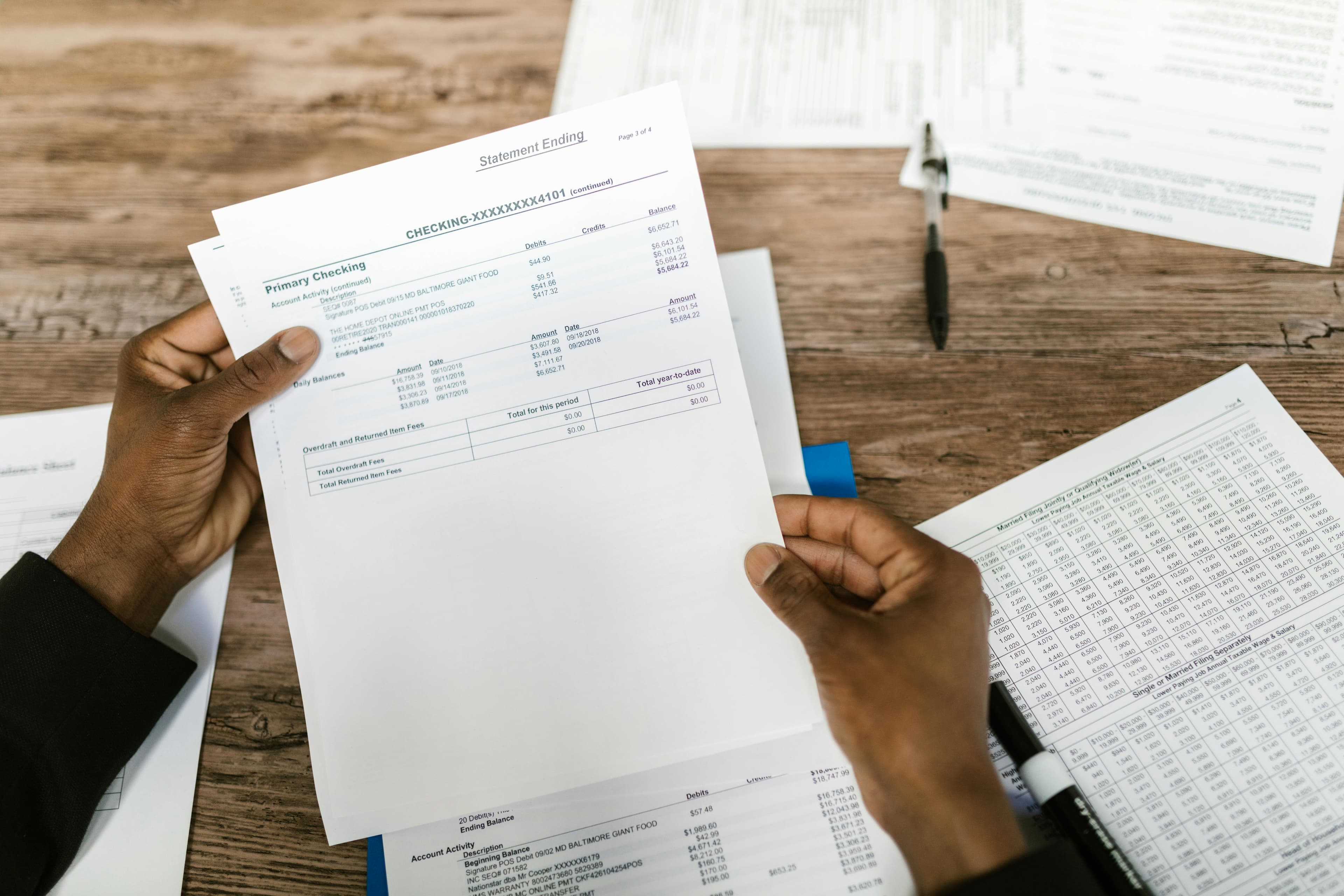
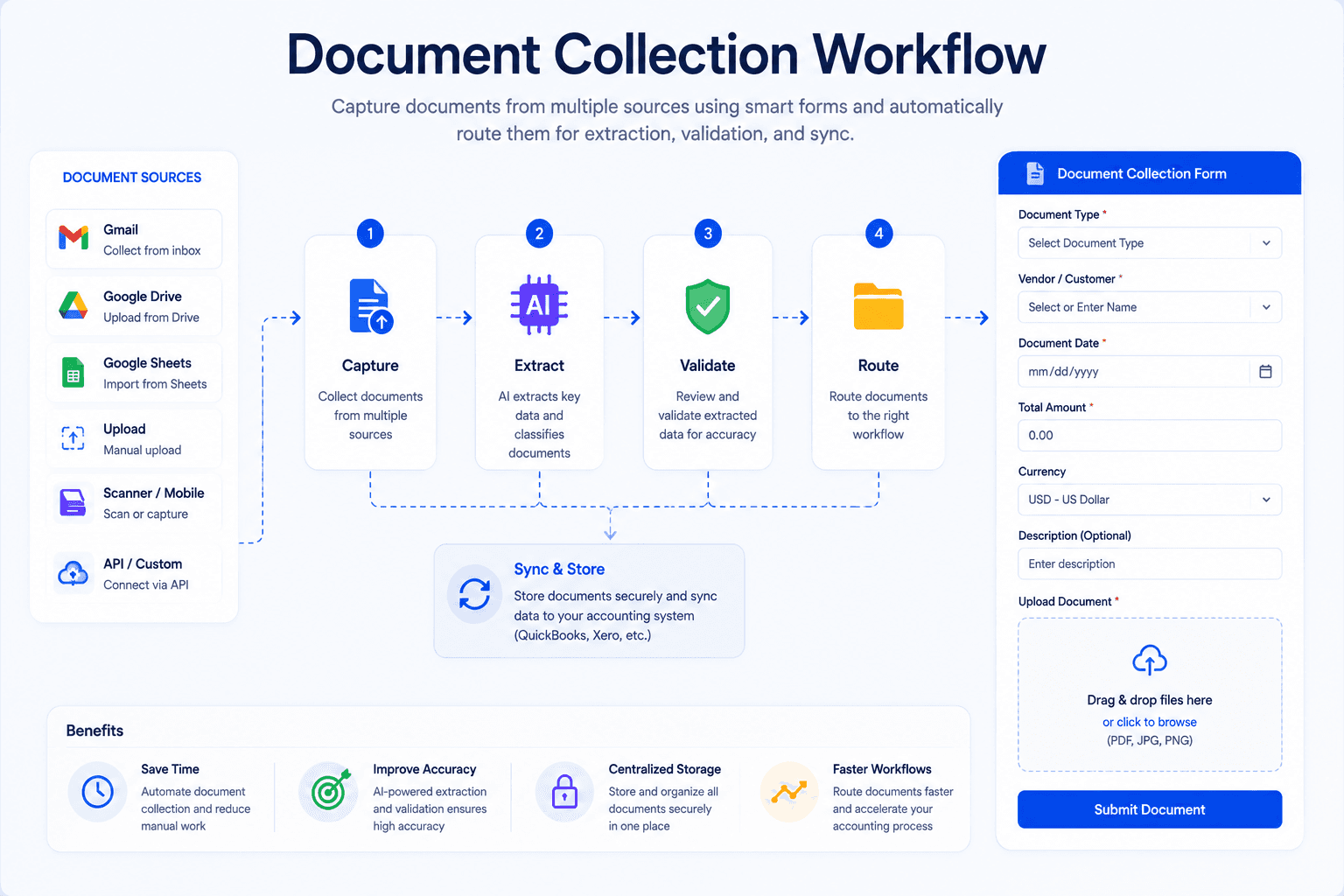
Converting a bank statement PDF to CSV is one of the most common tasks finance teams face when closing the books, preparing tax filings, or importing transactions into accounting software. Banks typically deliver statements as PDF files—secure, printable, and easy to archive—but PDFs are terrible for analysis. Spreadsheets, reconciliation tools, and accounting platforms all expect structured rows and columns.
If you have ever copied transactions line by line from a PDF into Excel, you already know how slow and error-prone the process can be. A single misplaced decimal or transposed date can throw off an entire month of reconciliation. That is why bank statement extraction has become a priority for bookkeepers, accountants, and small business owners who need clean data without spending hours on manual entry.
This guide walks you through every practical method for bank statement PDF to CSV conversion in 2026: manual approaches, OCR-based extraction, automated converters, and how to prepare your CSV for accounting and reconciliation. Whether you process five statements a month or five hundred, you will find a workflow that fits your volume, accuracy requirements, and budget.
Key Takeaways
- PDF bank statements are designed for reading, not data analysis—CSV conversion unlocks sorting, filtering, and accounting imports.
- Manual copy-paste works for tiny volumes but fails at scale due to formatting inconsistencies and human error.
- OCR and AI-powered bank statement converters handle scanned statements, multi-page layouts, and varied bank formats.
- A well-structured CSV with consistent date formats and column headers integrates cleanly with QuickBooks, Xero, and reconciliation workflows.
- Automated tools like the BillsDeck bank statement converter reduce extraction time from hours to minutes.
Why Convert Bank Statement PDFs to CSV?
Before diving into methods, it helps to understand why CSV is the target format for most finance workflows.
CSV Is Universal
Comma-separated values (CSV) files open in Excel, Google Sheets, Numbers, and virtually every accounting platform. Unlike proprietary formats, CSV is lightweight, portable, and easy to version-control. When you convert a bank statement PDF to CSV, you create a machine-readable transaction log that software can import, validate, and reconcile automatically.
Accounting Software Expects Structured Data
QuickBooks, Xero, Sage, and NetSuite all support bank feed imports or CSV-based transaction uploads. These systems need predictable columns: date, description, debit, credit, and balance at minimum. PDF tables do not expose that structure natively. Transaction extraction bridges the gap between what your bank delivers and what your books require.
Reconciliation Depends on Comparable Formats
Bank reconciliation compares your internal ledger against the bank's record of activity. When both sides use the same column structure, matching deposits, withdrawals, and fees becomes straightforward. A CSV export from your statement lets you use VLOOKUP, pivot tables, or dedicated reconciliation modules without retyping a single line.
Audit Trails and Compliance
Regulators and auditors often request transaction-level detail. CSV files are easier to search, filter, and attach to workpapers than multi-page PDFs. Converting statements to CSV at month-end creates a searchable archive that supports compliance reviews and internal controls.
Understanding Bank Statement PDF Formats
Not all bank statement PDFs are created equal. The extraction method you choose depends heavily on how your bank formats its documents.
Native Digital PDFs
Most online banking portals generate PDFs from structured data. Text is selectable, tables have clear rows, and fonts are consistent. These are the easiest to convert because underlying text layers exist even when the document looks like a printed page.
Scanned or Image-Based PDFs
Some banks—especially smaller institutions or legacy systems—deliver scanned images embedded in PDF wrappers. There is no selectable text. OCR for bank statements becomes mandatory here. Optical character recognition reads pixel data and reconstructs characters, which introduces more room for error than native PDF extraction.
Multi-Account and Multi-Page Layouts
Business accounts often produce statements spanning dozens of pages with multiple sub-accounts, summary sections, and footnotes. Extraction tools must distinguish transaction tables from headers, legal disclaimers, and running balance summaries. Generic PDF-to-text converters frequently garble these layouts.
International and Multi-Currency Statements
Statements from global banks may use DD/MM/YYYY dates, comma decimal separators, or multiple currency columns. Your CSV output must normalize these conventions before import. A good bank statement converter detects locale-specific formatting and standardizes it.
Manual Methods vs Automated Methods
Finance teams typically start with manual approaches and graduate to automation as volume grows. Here is an honest comparison.
Manual Copy-Paste
How it works: Open the PDF, select the transaction table, paste into Excel or Google Sheets, then clean up formatting.
Best for: One-off conversions, personal accounts, or statements with fewer than twenty transactions.
Pros:
- No cost beyond your time
- Full control over every cell
- Works offline
Cons:
- Extremely slow for multi-page statements
- Column misalignment is common when pasting tables
- No scalable audit trail
- High error rate on amounts with currency symbols or thousands separators
Manual copy-paste is acceptable for emergencies but should not be your default workflow if you process statements regularly.
Spreadsheet Import Wizards
How it works: Some versions of Excel and Google Sheets offer "Import from PDF" or third-party add-ons that attempt table detection.
Best for: Native digital PDFs with simple single-page tables.
Pros:
- Stays within familiar spreadsheet tools
- No additional software subscription
Cons:
- Unreliable on complex layouts
- Poor handling of scanned documents
- Often requires significant manual cleanup anyway
Python and Script-Based Extraction
How it works: Developers use libraries like tabula-py, pdfplumber, or camelot to programmatically extract tables from PDFs.
Best for: Engineering teams with predictable bank formats and in-house technical resources.
Pros:
- Highly customizable
- Can be automated in batch pipelines
- No per-document fees
Cons:
- Requires coding expertise
- Breaks when banks change PDF templates
- OCR for scanned statements needs additional libraries
- Maintenance burden falls on your team
OCR and AI-Powered Bank Statement Converters
How it works: Upload a PDF to a specialized platform. The system uses OCR, layout analysis, and machine learning to identify transaction rows, extract fields, and export CSV.
Best for: Accounting firms, bookkeepers, and businesses processing statements from multiple banks or in mixed formats (digital and scanned).
Pros:
- Handles varied layouts without custom code
- High accuracy on both native and scanned PDFs
- Batch processing for month-end closes
- Built-in validation and error highlighting
Cons:
- Subscription or per-document cost
- Requires trust in a third-party processor for sensitive financial data
For most finance teams in 2026, automated bank statement extraction delivers the best balance of speed, accuracy, and maintainability. Manual methods remain useful as a fallback, not a strategy.
How OCR Works for Bank Statements
OCR—optical character recognition—is the technology that makes scanned statement conversion possible. Understanding it helps you set realistic accuracy expectations and choose the right tool.
The OCR Pipeline
- Pre-processing: The system deskews images, removes noise, and enhances contrast so characters are legible.
- Text detection: Algorithms locate text regions and distinguish them from logos, lines, and watermarks.
- Character recognition: Each character is classified using trained models. Modern systems use deep learning rather than template matching.
- Layout analysis: Table structures are identified. Rows and columns are mapped so "Amount" does not end up in the "Description" column.
- Post-processing: Dates are parsed, amounts are normalized, and confidence scores flag uncertain fields for human review.
Why Generic OCR Falls Short
Running a scanned statement through a basic OCR engine gives you a wall of text—not a transaction table. Bank statements have specific patterns: running balances, debit/credit columns that may be mutually exclusive, and multi-line descriptions. Generic tools like free online OCR converters do not understand financial semantics.
Purpose-built bank statement extraction platforms train models on financial documents. They know that "01/15/2026" is a date, that "(150.00)" might represent a negative amount, and that "ACH DEBIT PAYROLL" belongs in the description field. This domain-specific intelligence is what separates a bank statement converter from a general PDF tool.
Improving OCR Accuracy Before Upload
You can improve results even before uploading:
- Download the highest-resolution PDF available from your bank portal
- Avoid printing and re-scanning statements when a digital download exists
- Crop unnecessary pages if your tool supports page selection
- Ensure statements are not password-protected unless your converter supports decryption
CSV Format for Accounting: What Your File Needs
A CSV is only useful if its structure matches what your accounting software expects. Here is how to format your export correctly.
Essential Columns
| Column | Purpose | Example |
|---|---|---|
| Date | Transaction posting date | 2026-01-15 |
| Description | Payee or transaction narrative | ACH DEBIT VENDOR PAYMENT |
| Debit | Money out of the account | 150.00 |
| Credit | Money into the account | 2000.00 |
| Balance | Running balance after transaction | 4850.00 |
Some banks use a single "Amount" column with positive and negative values instead of separate debit and credit columns. Both approaches work as long as you map them consistently during import.
Date Format Standardization
Accounting platforms are picky about dates. QuickBooks typically expects MM/DD/YYYY for US entities. Xero often prefers DD/MM/YYYY depending on region settings. ISO 8601 format (YYYY-MM-DD) is the safest interchange format because it sorts correctly and avoids ambiguity. When converting bank statement PDF to CSV, normalize all dates to one format before import.
Amount Formatting
Remove currency symbols ($, £, €) from amount columns. Use plain decimal numbers: 1234.56, not 1,234.56. Thousand separators confuse import parsers. Parentheses indicating negative amounts—(50.00)—should be converted to -50.00 or routed to the debit column depending on your chart of accounts convention.
Headers and Metadata Rows
Banks often include header rows like "Account Number: ****1234" or "Statement Period: January 2026" above the transaction table. Strip these before import. Your CSV should contain only column headers in row one followed by transaction data.
Encoding
Save CSV files as UTF-8 to handle international characters in payee names. Avoid Excel's default behavior on some systems that saves as ANSI or adds a BOM that breaks certain importers.
Step-by-Step Tutorial: Convert Bank Statement PDF to CSV
This section walks through a complete conversion workflow using automated extraction—the approach we recommend for most finance teams.
Step 1: Gather Your Statements
Collect all PDF statements for the period you are closing. For businesses with multiple accounts, organize files by account number and statement month. If you receive statements via email, download attachments directly rather than printing to PDF from an email preview pane, which can reduce quality.
Visit the BillsDeck bank statements hub for an overview of supported banks and document types if you are evaluating whether your institution's format is compatible.
Step 2: Choose Your Conversion Tool
For automated conversion, open the BillsDeck bank statement converter. This tool is purpose-built for bank statement PDF to CSV workflows and handles both digital and scanned documents.
If your statement contains complex nested tables—such as credit card summaries with embedded fee schedules—you may also use the PDF table extractor for supplementary data pulls.
Step 3: Upload Your PDF
Drag and drop your bank statement PDF into the upload area. Most converters accept files up to several dozen megabytes, which covers even lengthy business statements. If your PDF is password-protected, enter the password when prompted. Password protection is common for credit card statements delivered by email.
Step 4: Review Extracted Transactions
After processing, the converter displays a preview table. Review the following:
- Transaction count: Compare against the PDF's stated number of transactions if available
- Opening and closing balances: Verify they match the statement summary
- Date range: Confirm the first and last transaction dates align with the statement period
- Flagged fields: Low-confidence OCR results are typically highlighted for manual correction
This review step is where you catch errors before they enter your books. Spending five minutes here saves hours of reconciliation debugging later.
Step 5: Download the CSV
Export the verified data as CSV. Save with a descriptive filename: Chase_Checking_2026-01.csv. Consistent naming helps when you archive months of statements or share files with your accountant.
Step 6: Import into Accounting Software
Import the CSV into your accounting platform:
- QuickBooks Online: Banking > Upload from file, or use a third-party import tool
- Xero: Bank Accounts > Manage Account > Import a Statement
- Excel/Google Sheets: Open directly for analysis, pivot tables, or custom reconciliation
If you also process receipts alongside bank data, the receipt scanner for QuickBooks workflow complements statement import by matching expenses to individual receipt images.
Step 7: Reconcile
With transactions imported, run reconciliation against your ledger. Match each bank line to an existing entry or create new transactions for unmatched items. The CSV structure makes it straightforward to identify outstanding checks, deposits in transit, and bank fees that were not yet recorded.
Using BillsDeck for Bank Statement Conversion
BillsDeck is designed for finance teams that need reliable transaction extraction across diverse document types—not just bank statements, but invoices, receipts, and purchase orders as well.
What Sets BillsDeck Apart
- Finance-first extraction: Models trained on banking and accounting documents, not generic text
- Multi-bank support: Handles statement layouts from major US, UK, and international banks
- Scanned PDF support: Full OCR pipeline for image-based statements
- Batch processing: Upload multiple statements for month-end close
- Export flexibility: CSV, Excel, and direct integrations with accounting workflows
- Validation checks: Balance verification and duplicate detection
When BillsDeck Is the Right Choice
- You process more than ten statements per month
- Your statements come from multiple banks with different layouts
- You receive a mix of digital and scanned PDFs
- You need CSV output that imports cleanly into QuickBooks or Xero
- Your team lacks engineering resources to maintain custom extraction scripts
Getting Started
- Create a BillsDeck account at billsdeck.com
- Navigate to tools/bank-statement-converter
- Upload your first statement and review the extraction preview
- Download CSV and import into your accounting software
- Scale to batch uploads as your volume grows
Reconciliation After CSV Import
Conversion is only half the workflow. Reconciliation confirms that your books match the bank's records.
The Reconciliation Process
- Import CSV transactions into your accounting software or reconciliation spreadsheet
- Match transactions to existing ledger entries by date and amount
- Investigate unmatched items: outstanding checks, timing differences, bank errors
- Record adjustments for bank fees, interest, or corrections
- Confirm ending balance matches the statement closing balance
Common Reconciliation Discrepancies
| Discrepancy | Cause | Resolution |
|---|---|---|
| Missing transactions | Incomplete extraction | Re-run converter; check for multi-page tables |
| Duplicate entries | Re-imported CSV | Deduplicate by date + amount + description |
| Penny differences | Rounding during OCR | Adjust with a rounding entry |
| Date mismatches | Posting vs transaction date | Align on one date convention |
| Unrecorded fees | Bank charges not in books | Create expense entry |
A clean bank statement PDF to CSV conversion eliminates an entire category of reconciliation errors—those caused by manual data entry mistakes.
Common Errors and How to Fix Them
Even with automation, issues can arise. Here is a troubleshooting guide.
Garbled Characters After OCR
Symptom: Random symbols appear in descriptions, or amounts read as letters.
Fix: Re-download the PDF from your bank at higher quality. Avoid faxed or photocopied statements. Use a converter with financial-grade OCR rather than a free generic tool.
Columns Shifted or Merged
Symptom: Descriptions appear in the amount column, or debits and credits are combined.
Fix: The PDF layout may be non-standard. Try the PDF table extractor for complex tables. Manually adjust column mapping in the converter preview before export.
Missing Transactions on Multi-Page Statements
Symptom: Transaction count is lower than expected.
Fix: Ensure all pages were uploaded. Some converters process only page one by default. Check for continuation tables on later pages. Re-upload with explicit page range selection.
Date Parsing Errors
Symptom: Dates appear as Excel serial numbers or swap day and month.
Fix: Set date column format to YYYY-MM-DD in the CSV before import. Verify regional date settings in your accounting software match the normalized format.
Balance Does Not Tie
Symptom: Running balance in CSV does not match the statement closing balance.
Fix: Look for dropped rows—often opening balance lines or interest accrual entries that look like headers. Re-extract and include summary rows if needed. Verify no duplicate transactions were created.
Import Rejected by Accounting Software
Symptom: QuickBooks or Xero rejects the CSV file.
Fix: Check for extra header rows, blank lines, or special characters. Confirm column count is consistent on every row. Remove currency symbols and thousand separators from amounts.
Best Practices for Ongoing Statement Processing
Teams that convert statements monthly benefit from a repeatable process.
Standardize Your File Naming
Use BankName_AccountType_YYYY-MM.csv consistently. Archive PDFs and CSVs in matching folders.
Process Statements Promptly
Convert and import within days of month-end, not weeks. Fresh memory helps you catch anomalies.
Maintain a Conversion Log
Record which tool processed each statement, the transaction count, and whether balances tied. This log supports audit inquiries.
Combine with Receipt Matching
Bank statements show that money left the account; receipts show what it bought. Pair CSV imports with receipt capture for complete expense documentation. BillsDeck supports both workflows under one platform.
Review Extraction Accuracy Quarterly
Banks occasionally redesign statement templates. Spot-check a few conversions each quarter to ensure your tool still performs well.
Manual Conversion: When It Still Makes Sense
Automation is not always necessary. Manual methods remain appropriate when:
- You have a single personal account with a handful of transactions
- The statement is one page with a clean, copy-paste-friendly table
- You need a quick reference and do not require accounting import
- You are offline without access to conversion tools
For these cases, open the PDF, select the table, paste into a spreadsheet, use "Text to Columns" to split fields, and save as CSV. Double-check balances before importing.
Security and Privacy Considerations
Bank statements contain sensitive account numbers, transaction histories, and payee information. When choosing a bank statement converter, evaluate:
- Encryption in transit and at rest: Data should be protected during upload, processing, and storage
- Retention policies: Understand how long uploaded files are stored and when they are deleted
- Compliance certifications: SOC 2, GDPR compliance, and regional data residency requirements
- Access controls: Role-based permissions if multiple team members process statements
BillsDeck processes financial documents with security practices appropriate for accounting and bookkeeping workflows. Review the platform's privacy policy before uploading production data.
Frequently Asked Questions
Can I convert a scanned bank statement PDF to CSV?
Yes. Scanned statements require OCR-based extraction because there is no underlying text layer. Use a purpose-built bank statement converter with financial OCR rather than a generic text extractor. BillsDeck handles scanned PDFs through its full OCR pipeline.
What is the best free way to convert bank statement PDF to CSV?
Manual copy-paste into Google Sheets or Excel is free but slow and error-prone. Free online converters often lack financial layout understanding and may not protect your data. For occasional personal use, manual methods work. For business use, a dedicated tool is worth the investment.
Will CSV import work with QuickBooks Online?
Yes. QuickBooks Online supports CSV bank statement imports when columns are formatted correctly. Ensure dates, amounts, and descriptions match QuickBooks' expected import template. Pair statement imports with the receipt scanner for QuickBooks for complete expense tracking.
How accurate is automated bank statement extraction?
Modern AI-powered converters achieve 95–99% field-level accuracy on native digital PDFs. Scanned statements may be slightly lower depending on scan quality. Always verify opening and closing balances and transaction counts before importing.
What columns should my CSV include?
At minimum: date, description, debit, credit, and balance. Some workflows use date, description, and a single signed amount column. Match your CSV structure to your accounting software's import template.
Can I convert credit card statements the same way as checking account statements?
Yes. Credit card statements follow similar table structures with transaction dates, merchant descriptions, and amounts. The same bank statement PDF to CSV workflow applies. Charges may map to debits and payments to credits.
Why does my PDF paste into Excel as one column?
PDF tables do not always include tab separators. Pasting preserves visual layout but not column structure. Use a converter or Excel's "Text to Columns" feature with custom delimiters, or import through a dedicated extraction tool.
How do I handle statements with multiple accounts?
Multi-account PDFs require extraction tools that detect separate table sections per account. Review each section in the converter preview and export either combined or per-account CSV files depending on your chart of accounts structure.
Is converting bank statements to CSV legal?
Yes. You are converting your own financial records for personal or business accounting purposes. Ensure any third-party tool you use handles your data in compliance with applicable privacy regulations.
How does BillsDeck compare to manual extraction?
BillsDeck processes a typical multi-page statement in under a minute with automated validation. Manual extraction of the same document can take thirty minutes to several hours with higher error rates. For recurring monthly processing, automation pays for itself quickly.
Conclusion
Converting bank statement PDF to CSV is a foundational step in modern bookkeeping. PDFs are excellent for archival and review; CSVs are essential for analysis, import, and reconciliation. Manual methods serve low-volume needs, but finance teams processing statements at scale need OCR and AI-powered bank statement extraction to maintain accuracy and save time.
Start by understanding your statement format—digital or scanned, simple or multi-page. Choose a conversion method that matches your volume and technical resources. Format your CSV with consistent dates, clean amounts, and proper column headers. Review extracted data before import, reconcile against your ledger, and maintain a repeatable monthly process.
For a fast, accurate, finance-first workflow, use the BillsDeck bank statement converter to turn PDF statements into import-ready CSV files. Explore the full bank statements capabilities, supplement with the PDF table extractor for complex layouts, and integrate with your broader accounting stack including receipt scanning for QuickBooks.
The time you reclaim from manual data entry is time you can spend on analysis, advisory work, and closing the books with confidence.