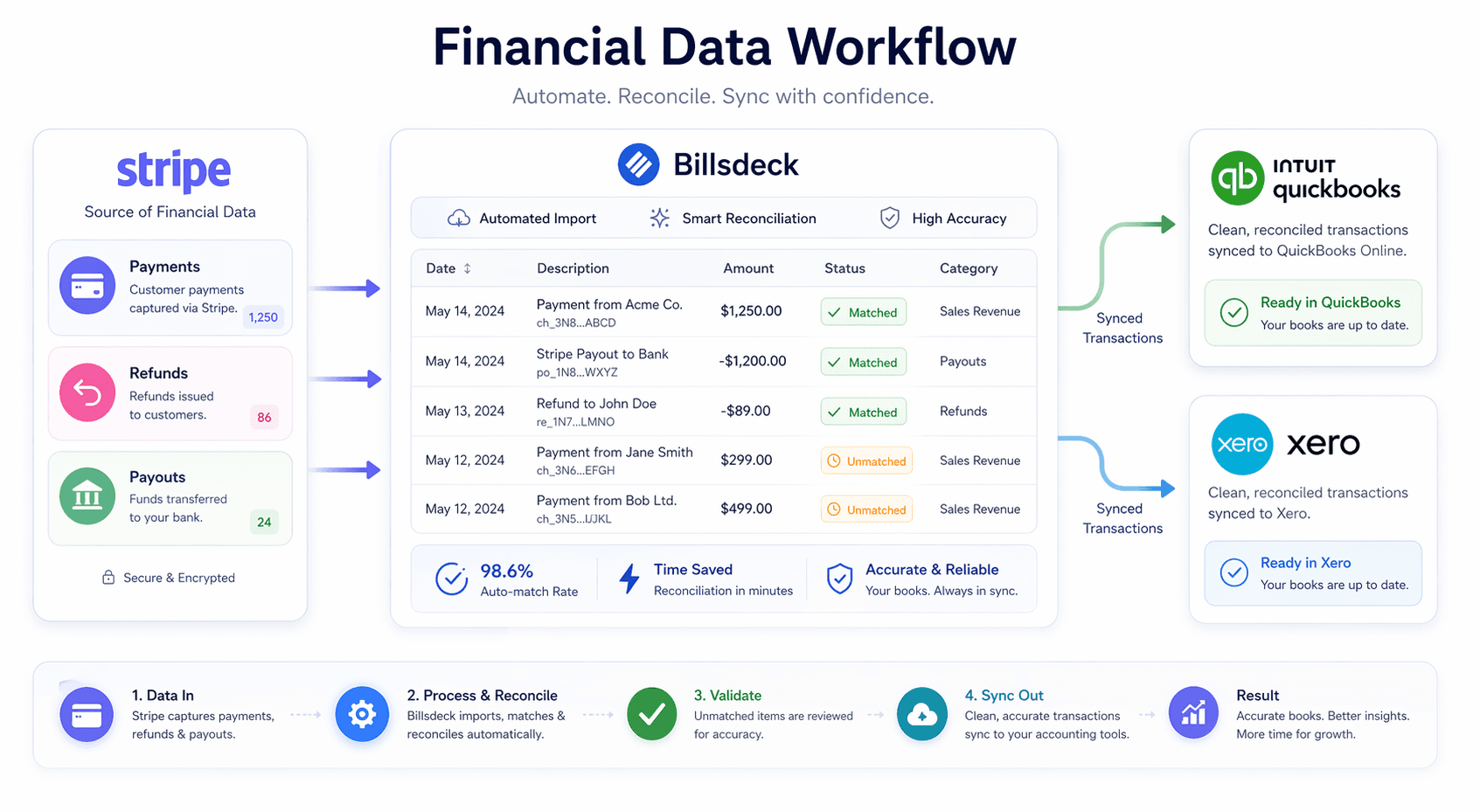
Bank statements contain everything needed to maintain accurate books—but turning them into structured accounting data is still a manual process for many businesses.
This guide explains how to automate bank statement extraction, classify transactions as expenses or deposits, and sync everything into QuickBooks.
Why Bank Statement Processing Is Time-Consuming
Most teams still follow a manual process:
- Download statements (PDF or CSV)
- Enter transactions into QuickBooks
- Categorize each entry manually
This leads to:
- Data entry errors
- Inconsistent categorization
- Delayed reconciliation
- Time lost on repetitive work
What an Automated Workflow Should Do
A proper workflow should:
- Extract transactions from bank statements
- Convert data into structured format
- Classify entries as expense or deposit
- Categorize transactions automatically
- Sync clean data into QuickBooks
Top 5 Bank Statement Extraction Tools
1. Hubdoc
Hubdoc helps collect and extract financial documents.
Best for:
- Small businesses
- Document storage + extraction
Key features:
- Automatic document fetching
- Data extraction
- QuickBooks sync
2. Dext
Dext focuses on extracting and organizing financial data.
Best for:
- High-volume document processing
Key features:
- OCR extraction
- Expense categorization
- Accounting integrations
3. AutoEntry
AutoEntry converts bank statements into structured entries.
Best for:
- Bulk processing
Key features:
- PDF and image extraction
- Line-by-line transaction capture
- QuickBooks integration
4. Zoho Books (Auto Scan)
Zoho Books includes built-in scanning tools.
Best for:
- Users in the Zoho ecosystem
Limitations:
- Limited flexibility outside Zoho
5. BillsDeck
BillsDeck provides a structured workflow for bank data processing.
Best for:
- Businesses handling multiple statement formats
- Teams needing review before syncing
Key features:
- Upload bank statements (PDF/CSV)
- Extract transactions into structured format
- Automatically classify entries as expense or deposit
- Bulk review and edit transactions
- Export or sync directly to QuickBooks
This is especially useful when:
- Cleaning up historical bank data
- Handling large transaction volumes
- Standardizing financial data before syncing
How Bank Statement Workflow Works
- Upload statement (PDF/CSV)
- Extract transactions automatically
- Classify as expense or deposit
- Categorize into accounts
- Sync clean data to QuickBooks
Expense vs Deposit Classification
Correct classification is critical:
- Expenses → Payments, subscriptions, vendor costs
- Deposits → Sales income, transfers, refunds received
Automation helps reduce misclassification and improves reporting accuracy.
Common Mistakes to Avoid
- Uploading without reviewing extracted data
- Misclassifying deposits as income
- Ignoring duplicate entries
- Skipping reconciliation with bank balance
Final Thoughts
Bank statements are one of the most reliable sources of financial data—but only when properly structured.
With tools like Hubdoc, Dext, AutoEntry, or BillsDeck, businesses can:
- Eliminate manual entry
- Improve accuracy
- Speed up month-end closing