Managing receipts is a critical part of bookkeeping. For accountants and business owners using QuickBooks Online, capturing and categorizing receipts ensures accurate expense tracking, easier reconciliation, and audit-ready documentation.
QuickBooks provides a built-in feature that allows users to upload receipts and automatically extract transaction details. However, the native workflow is typically designed for single receipt processing, which can become time-consuming when dealing with large volumes.
This guide explains:
- How to capture receipts in QuickBooks Online
- How to categorize receipts correctly
- How to handle bulk receipt processing using automation tools like BillsDeck
Why Receipt Capture Matters in QuickBooks
Capturing receipts properly helps businesses:
- Maintain accurate expense records
- Prepare for tax audits
- Simplify bank reconciliation
- Maintain supporting documentation for transactions
QuickBooks can extract information from uploaded receipts and create transactions that you can review and match to existing entries.
How to Capture Receipts in QuickBooks Online
QuickBooks allows users to upload receipts through:
- Web browser
- Mobile app
- Email forwarding
The platform extracts data from uploaded receipts and prepares them for review before they are added to the books.
Step 1: Upload Receipts
Upload from a Computer
- Open QuickBooks Online
- Navigate to Transactions
- Click Receipts
- Select Upload from computer or Upload from Google Drive
- Choose the receipt file and upload
QuickBooks supports common file formats including:
- JPG / JPEG
- PNG
- GIF
Each uploaded file should contain only one receipt for accurate processing.
Capture Receipts Using the Mobile App
QuickBooks also allows receipt capture through the mobile application.
Steps:
- Open the QuickBooks Online mobile app
- Tap the Menu (≡) icon
- Select Receipt snap
- Tap Receipt camera
- Take a photo of the receipt
- Select Use this photo
This workflow allows employees and accountants to capture receipts instantly while on the go.
Upload Receipts via Email
Another option is forwarding digital receipts directly to QuickBooks via email. QuickBooks extracts information and prepares the transaction for review.
How to Categorize Receipts in QuickBooks Online
Once receipts are uploaded, they must be reviewed and categorized before they are included in the books.
Step-by-Step Categorization Process
- Open QuickBooks Online
- Go to Transactions → Receipts
- Select the receipt that needs review
- If the Action column shows “Review”, edit the receipt and add missing information
- QuickBooks may suggest a matching transaction
- If the match is correct, click Match
- If no match exists, create a new expense
This process connects receipts to transactions in the accounting records.
Limitations of QuickBooks Receipt Capture
While QuickBooks offers basic receipt management, many accounting teams encounter limitations when working with larger volumes.
Common challenges include:
1. Single Receipt Upload
QuickBooks typically processes one receipt per upload, making bulk receipt handling time-consuming.
2. Manual Review
Each receipt must be reviewed individually before matching transactions.
3. Limited Document Organization
Managing receipts across multiple clients or accounts can become difficult during tax season.
For accounting firms or businesses handling hundreds of receipts each month, automation tools can significantly improve efficiency.
Bulk Receipt Processing with BillsDeck
For accountants managing high volumes of receipts, automation tools like BillsDeck help streamline the workflow.
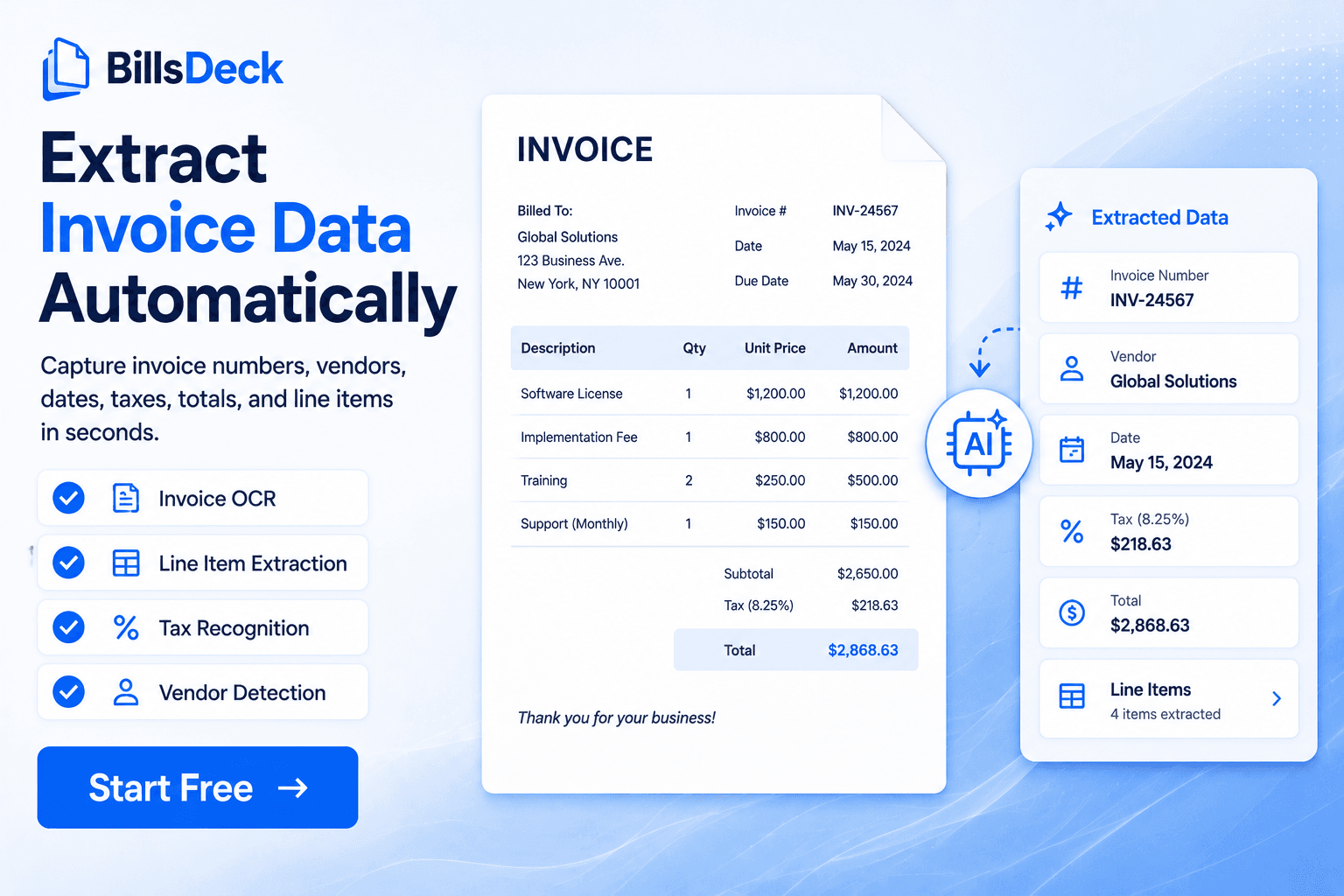
BillsDeck is designed to automate the capture, extraction, and organization of receipts, making it easier to move data into accounting systems such as QuickBooks.
Instead of uploading receipts individually, accountants can process multiple receipts together and organize them before pushing them into their bookkeeping workflow.
How to Upload Receipts in BillsDeck
According to the documentation, you can upload receipts to BillsDeck using the following workflow.
Step 1: Open the Upload Page
Navigate to the BillsDeck upload section:
Step 2: Upload Receipts
Upload receipts using one of the supported methods:
- Drag and drop receipts
- Upload multiple files at once
- Import digital receipts
Step 3: Automatic Data Extraction
BillsDeck automatically extracts key receipt data such as:
- Vendor name
- Transaction date
- Amount
- Taxes
- Categories
This reduces manual data entry and improves accuracy.
Step 4: Review and Categorize
Accountants can then review the extracted data and categorize receipts before syncing them with their accounting system.
Step 5: Sync with Accounting Workflows
After validation, receipts can be organized and exported to bookkeeping workflows, making reconciliation faster and more accurate.
When to Use QuickBooks vs BillsDeck
| Task | QuickBooks | BillsDeck |
|---|---|---|
| Capture a single receipt | ✅ | ✅ |
| Upload via mobile | ✅ | ✅ |
| Bulk receipt processing | ❌ | ✅ |
| Automated extraction | Limited | Advanced |
| Receipt organization | Basic | Advanced |
For occasional receipt uploads, QuickBooks works well.
For accountants processing hundreds of receipts monthly, BillsDeck helps automate and scale the workflow.
Best Practices for Receipt Management
To maintain clean and audit-ready books:
1. Capture Receipts Immediately
Upload receipts as soon as transactions occur.
2. Standardize Categories
Use consistent expense categories in your chart of accounts.
3. Review Matches Carefully
Always confirm QuickBooks' suggested matches before approving.
4. Automate High-Volume Workflows
Use tools like BillsDeck to reduce manual receipt entry.
Final Thoughts
Capturing and categorizing receipts in QuickBooks Online is essential for maintaining accurate financial records. The built-in receipt feature works well for basic receipt capture, allowing users to upload receipts, extract details, and match them to transactions.
However, as businesses grow and transaction volumes increase, manual receipt processing can slow down bookkeeping workflows.
Automation platforms like BillsDeck help accountants manage large numbers of receipts efficiently by enabling bulk uploads, automated extraction, and organized expense workflows.
For firms looking to scale their bookkeeping processes, combining QuickBooks with automated receipt processing tools can significantly reduce manual work.